Connecting Multiple Stores to Magik Social Media Auto Post
This guide explains how to connect multiple stores to Magik Social Media Auto Post while maintaining a stable connection with Meta (Facebook & Instagram).
Step 1: Connect Your First Store
You can skip this step if you have already connected your first store.
0. ***GO ON YOUR FIRST STORE***- Click Add Account.
- Select Facebook / Instagram.
- Connect your social account.
You should see something like this:
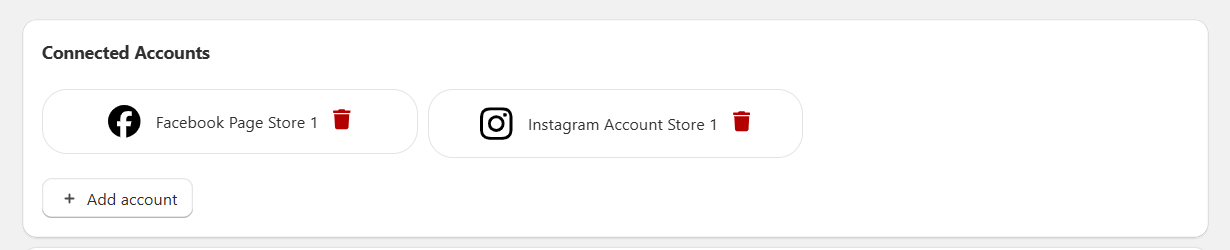
Once completed, your first store will be fully connected.
Step 2: Connect Your Second Store
Follow these steps carefully — this is where the important setup happens.
0. ***GO ON YOUR SECOND STORE***1. Click Facebook / Instagram. The pop-up will open.
2. Click the blue link to change the settings.
If you don’t see this screen, skip this step and continue.
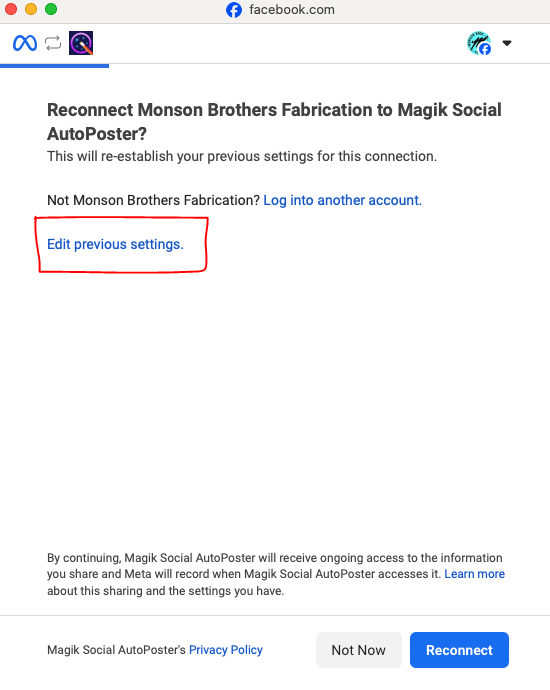
3. Select the option where you can select the Facebook Pages and Instagram accounts you want to connect.
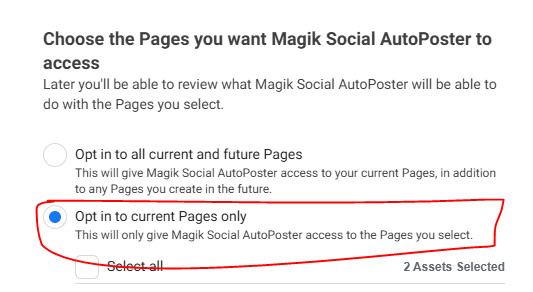
4. IMPORTANT: Select the Facebook Pages from your second store, but also keep the Pages from your first store selected.
The Pages from your first store will NOT be added to your second store. This step is only required to maintain the connection with Meta.
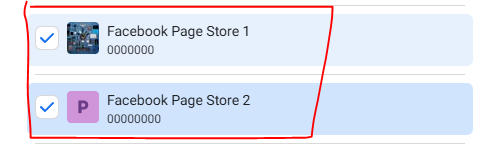
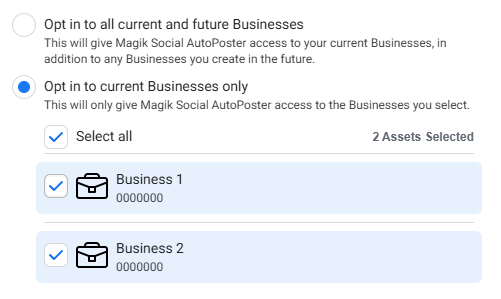
5. Select the Business accounts from both your first and second stores.
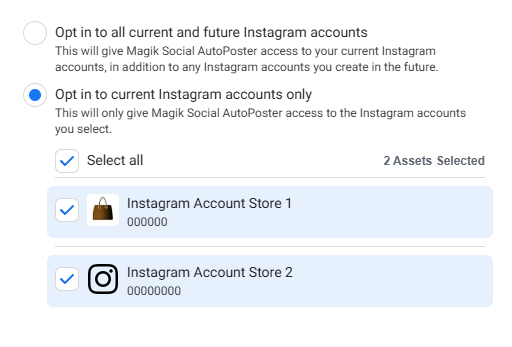
6. Select the Instagram accounts from both your first and second stores.
Important: Keep Previous Connections Checked
Always keep the Facebook Pages and Instagram accounts from your first store checked when connecting additional stores.
These accounts will not be added to your second store.
However, keeping them selected is required to maintain a valid connection with Meta. If you uncheck them, the connection may break or require reauthorization.
Summary
- Connect your first store with its Facebook Page and Instagram account.
- Connect your second store with its own accounts.
- Always keep previously connected accounts selected.